Scan a Wine Receipt to Add Bottles in InVintory
Madeleine Cruickshank
October 26, 2026 · 4 min read
How does receipt scanning work in InVintory?
Scan your receipt in InVintory and it creates a purchase, reads each line, matches the wines to its database, and can add the bottles to your collection or hold them in a delivery until they arrive.
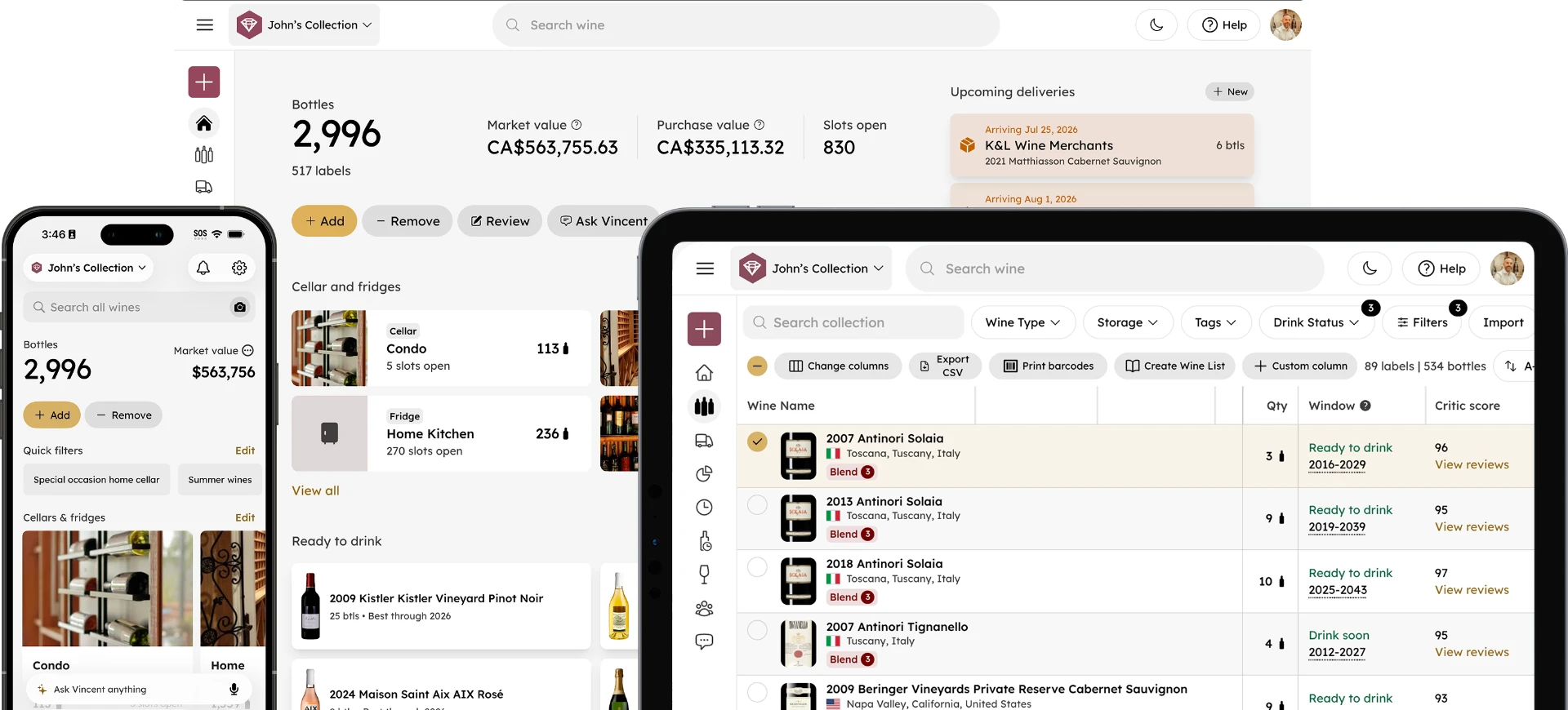
Receipt scanning is a Premium feature, and the October product update lists it on iPhone and iPad. InVintory identifies each wine, logs what you paid and where you bought it, and adds the wines to your collection. See what each plan includes on the pricing page.
Why scan a receipt instead of adding bottles one by one?
A receipt carries what a label scan cannot: the price you paid, where you bought the wines and the date, for every bottle in the order at once. Scanning a label adds one bottle at a time, while scanning a receipt starts a whole purchase. Each bottle's details then show the purchase it came from, and you can attach receipts and invoices to a purchase.
Try a receipt scan in InVintory →
How do you scan a wine receipt?
- Open the InVintory app on your iPhone or iPad.
- Start a receipt scan and photograph the whole receipt, flat and well lit, with every line readable.
- Review the wines InVintory matched to each line of the receipt.
- Confirm the purchase and choose whether the bottles go straight into your collection or into a delivery.
The exact screens are walked through in the InVintory help center article on adding wines by scanning a receipt.
What should you check after a scan?
Names and vintages. Compare each matched wine with its receipt line, paying most attention to the vintage.
Quantities and prices. Make sure the number of bottles and what you paid match the receipt, since these feed your collection value and spending.
Source and date. Check where you bought the wines and the purchase date, because the purchase record keeps them.
What if a wine is not matched?
Search for the wine by name, producer or region. If it is not in InVintory's database, you can submit it: the wine appears in your own search results straight away so you can add bottles of it, while InVintory reviews it and fills in missing details such as producer, region, grape varieties and market price.
Receipts versus label scanning
Scan a label when the bottle is in front of you and you want to add it to a specific spot. Scan a receipt when you have just bought several bottles and want the price and source recorded. If a label scan fails, see why a wine label will not scan and 12 fixes, and for which scanner apps are worth using, see our wine label scanner comparison.
Scanning a restaurant wine list is a different thing: it hands the pages to Vincent for a recommendation and does not add bottles to your collection. If you are loading a whole existing cellar from a file or another wine app, importing is faster than scanning.
How does it fit with purchases and deliveries?
Since September, deliveries live inside purchases. A purchase records the source, date and items, one or more deliveries sit inside it, and a purchase can also add its bottles to your collection right away. A scanned receipt starts that purchase for you. Our guide to tracking wine deliveries covers the rest, and our guide to importing a large collection covers bringing in a cellar you already track elsewhere.
FAQ
Do I need Premium to scan receipts?
Yes. InVintory lists receipt scanning as a Premium feature on its pricing page.
Which devices support receipt scanning?
The October product update lists receipt scanning on iPhone and iPad.
Does a scanned receipt add the bottles to my collection?
It can. InVintory reads the receipt, matches the wines to its database, and either creates a delivery or adds the wines straight to your collection.
Can I attach a receipt to a purchase?
Yes. InVintory's App Store release notes list adding receipts and invoices to a purchase, and each bottle's details show the purchase it came from.