How to Set Up InVintory: A Quick Start Guide for New Users
Madeleine Cruickshank
June 11, 2026 · 5 min read
InVintory is built to be intuitive from the first tap, but like any serious tool, the collectors who get the most out of it are the ones who set it up properly from the start. This guide walks you through everything you need to do in your first session, from adding your first bottle to mapping your cellar and meeting Vincent.
The whole setup takes about 15 to 30 minutes depending on your collection size. After that, the daily habit takes seconds.
Step 1: Download InVintory and Create Your Account
How do I get started with InVintory?
Download InVintory from the App Store on iPhone or iPad, or go to app.invintory.com to use the web version. Create a free account using your email address or sign in with Google or Apple. Your collection syncs automatically across all devices, so you can add bottles on your phone and browse your cellar on your computer.
InVintory's Free tier gives you unlimited bottle tracking, drink window monitoring, food pairings, and collection export with no subscription required. Premium unlocks VinLocate cellar mapping, Vincent AI sommelier, Collection Analytics, and more. You can start with Free and upgrade whenever you're ready. For a full breakdown of features across pricing tiers, visit our pricing page.
Step 2: Add Your First Bottles
What is the fastest way to add bottles to InVintory?
Tap the Add button on the home screen, then search for a wine or scan a label. InVintory's sommelier-curated database covers over two million wines, so most bottles match on the first search or scan without manual data entry.
There are four ways to add bottles, depending on your situation:
Scan a label: Point your camera at any wine label and InVintory identifies the bottle automatically. This is the fastest method for adding bottles one at a time.
Search the database: Type the producer, wine name, or region to find any bottle in InVintory's database. Useful when the label is hard to scan or when adding bottles that aren't physically in front of you.
Import from another app: If you're coming from CellarTracker, Vivino, or a spreadsheet, InVintory's import tool brings your entire collection across in one step. Go to your Profile > Settings > Collection > Import data and select the import method that applies to your existing collection. For a full walkthrough, this post on importing a large collection covers the process in detail.
Use the Quick Action menu: Tap the menu button on your home screen to open the Quick Action menu, then tap Add or Scan wine to choose your preferred method of adding an individual bottle.
Step 3: Set Up Your Storage
How do I set up a cellar or fridge in InVintory?
Create a cellar or fridge to organize where your bottles live. Tap ‘Create new cellar or fridge’ on the home screen and select the type of storage you have.
You can create as many storage locations as you need; a home cellar, a wine fridge, a rack in the dining room, offsite storage, etc. Name each one clearly so you can identify it at a glance.
If you have a wine fridge from a major brand, InVintory's fridge templates for EuroCave, LeCavist, Wine Enthusiast, and other brands let you start from an accurate layout rather than building from scratch. Select your fridge model from the template library, customize the layout to match your exact configuration, and your bottles can be assigned precise locations immediately. For a full guide to setting up a fridge, this post on wine fridge setup covers the process step by step.
If you have a custom cellar or rack system, InVintory's VinLocate builder lets you map any layout (shelves, bins, racks, columns, and rows) to match your exact physical space. Once mapped, every bottle has a precise location and InVintory highlights it visually the moment you search. For a full guide to mapping a custom cellar, this post on setting up VinLocate walks through the process in detail.
Step 4: Meet Vincent
How do I use Vincent in InVintory?
Try Vincent by asking your AI sommelier a question like "What should I drink tonight?" or "What pairs well with steak?" You can open a Vincent chat from the home screen by tapping Ask Vincent anything at the bottom, or by using the microphone icon for voice input.
Vincent is collection-aware from the moment your bottles are in InVintory. He knows what you own, tracks your preferences as you share them, and gives recommendations drawn from your actual cellar rather than generic suggestions.
A few things worth trying in your first session with Vincent:
- Ask him what you should open tonight based on what's in your collection
- Tell him what you're cooking and ask for a pairing suggestion
- Ask him about a specific bottle: tasting notes, ideal serving temperature, drinking window
- Tell him something about your taste preferences so he can start learning what you like
For a full overview of what Vincent can do, this post on Vincent's features covers everything in detail.
Step 5: Explore Your Home Screen
What does the InVintory home screen show?
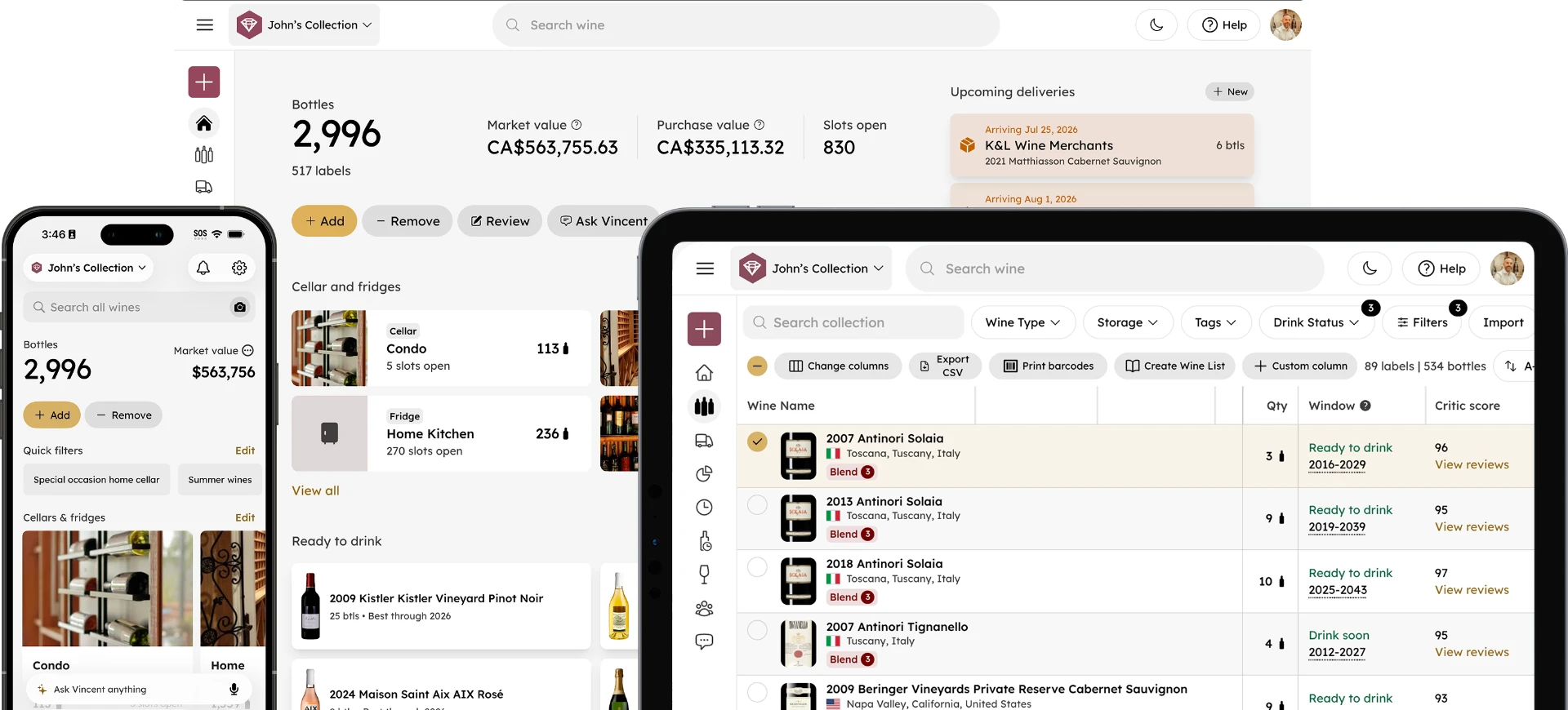
The home screen is your collection dashboard; a single place to see stats, take quick actions, and jump into any feature. At the top you'll see your bottle count and market value. Below that, your storage locations appear as cards showing what's in each space. The Ready to Drink section surfaces bottles currently in their peak drinking window automatically.
A few home screen features worth knowing from day one:
Ready to Drink: Shows every bottle currently in its optimal drinking window, updated automatically. Check this before deciding what to open.
Deliveries: Shows upcoming wine shipments. Add a delivery when you place an order and InVintory will remind you when it's expected to arrive.
Saved Lists: If you create lists for specific varietals, regions, or occasions, they appear as quick-tap cards on the home screen for instant access.
Step 6: Build the Daily Habit
How do I keep InVintory accurate over time?
The key is two habits: log additions immediately and remove bottles the moment you open them. Both take seconds with the Quick Action menu. Both are easy to skip and hard to catch up on after a gap.
The collectors who get the most from InVintory are the ones who treat it as a live record rather than an occasional reference. Add a bottle before you put it away. Remove a bottle before you pour it. That habit keeps your cellar accurate and makes every recommendation from Vincent more relevant.
Download InVintory Free →
Frequently Asked Questions
Is InVintory free to use?
Yes. InVintory has a permanently free tier that includes unlimited bottle tracking, drink windows, food pairings, saved lists, and collection export. Premium and Elite plans unlock additional features including VinLocate, Vincent AI, Collection Analytics, and more. See invintory.com/pricing for the full comparison.
Can I import my existing wine collection into InVintory?
Yes. InVintory supports direct import from CellarTracker, Vivino, and spreadsheets. Go to your Profile > Settings > Collection > Import data to get started.
Is InVintory available on web as well as iPhone?
Yes. InVintory is available on iPhone and iPad (get the app on the App Store), and web at app.invintory.com. Your collection syncs automatically across all platforms.
How do I find a bottle in my cellar using InVintory?
Once your cellar or wine fridge is mapped using VinLocate, search for any bottle and InVintory highlights its exact location in your 3D storage map. VinLocate is available on Premium and Elite plans.
What is Vincent in InVintory?
Vincent is InVintory's AI wine sommelier. He gives personalized recommendations based on your collection, answers questions about specific wines, suggests food pairings, and can add or remove bottles through natural conversation. He's available on Premium and Elite plans.
Setup takes 20 minutes. The payoff is a cellar you understand completely every time you open the app.