Your InVintory Home Screen: A Full Feature Guide
Madeleine Cruickshank
July 15, 2026 · 5 min read
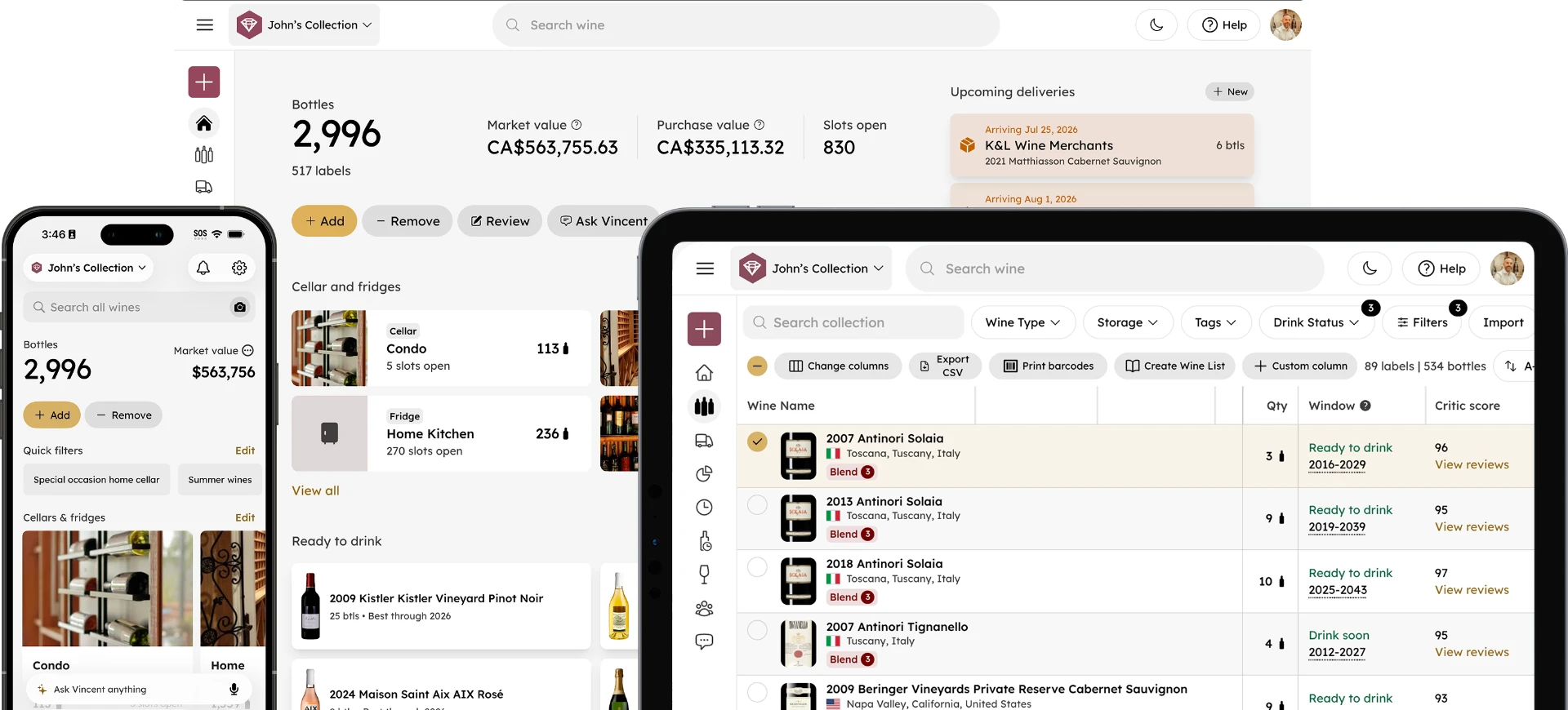
InVintory's home screen is designed to be the one place you check to understand your entire collection at a glance. With the recently added home screen customization feature, you can also decide exactly what shows up first. Here's a full breakdown of what's there and how to make it work for you.
What can you do from the InVintory home screen?
The home screen gives you a dashboard view of your entire collection: bottle count and market value, quick filters, an AI wine assistant, storage locations, bottles ready to drink, recent activity, and collection analytics, all in one place.
Bottles and Market Value, Front and Center
At the top of your home screen sit two numbers: your total bottle count and your collection's current market value. Both update automatically as you add, remove, or drink bottles, and as market prices shift. Right below them, Add and Remove buttons give you one-tap access to the two actions you'll use most often, adding a new bottle to your collection or logging one you've consumed, gifted, or sold.
Quick Action Menu
Tap the Add button to open the Quick Action Menu, which gives one-tap access to nine common tasks, including adding a bottle, scanning a label, and logging a bottle you've consumed. It's built to keep the most frequent actions within a single tap from wherever you are in the app.
Quick Filters
Below the main numbers, Quick Filters give you shortcuts to saved searches you use often. Rather than rebuilding the same search every time, save it once, for example, "Special occasion home cellar" or "Summer wines", and it appears here as a tappable shortcut. This is one of the most underused features on the home screen; if you find yourself running the same search repeatedly, it belongs here instead.
Vincent, Your AI Wine Assistant
Vincent sits right on the home screen, ready for a question the moment you open the app. Ask what pairs well with dinner, what's ready to drink tonight, or have Vincent add or remove a bottle through natural conversation. Vincent's recommendations come from your actual collection, not a generic database.
Cellars and Fridges
Your storage locations appear as cards showing a photo, the name, bottle count, and available slots for each cellar or fridge, organized by property. If you store wine across multiple locations, such as a condo and a home, each property gets its own section, so you can see at a glance how your collection is distributed. Tap on each location to see a breakdown of each VinLocate section within that storage location. Tap on a section to jump straight into your visual cellar map. For a full walkthrough of VinLocate, see our guide to organizing a wine collection.
What does Ready to Drink show you?
Ready to Drink automatically surfaces every bottle in your collection currently within its optimal drinking window, calculated for every bottle you own, so you don't have to check each one manually. It's a Premium feature.
More on Your Home Screen
Scrolling further down, you'll find:
Deliveries
Track wine shipments on their way to you, and get a reminder to bring them in promptly. See our guide to transporting and shipping wine safely in summer heat for why this matters more than it seems.
Saved Lists
Quick access to any custom lists you've built, such as a summer hosting shortlist. For ideas on building one, see our summer hosting guide.
Past Bottles
A record of wines you've consumed or removed, useful for remembering what you've already tried.
Recent Activity
A running log of everything you've done in your collection.
Analytics
Bottles added and consumed over time, spending trends, and more, broken down visually.
Customizing Your Home Screen
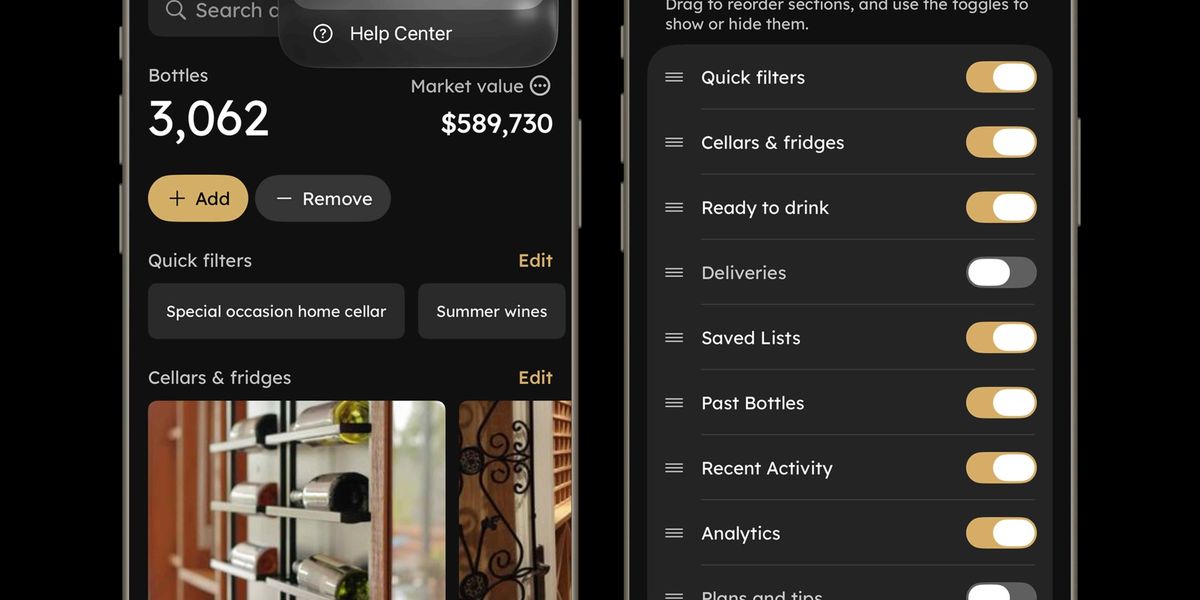
You don't have to see every section in the same order every time. From the Customize Home menu (found under your account menu at the top right of your Home Screen, alongside Account Settings and Help Center), you can drag to reorder sections and use the toggles to show or hide each one individually. Every section covered above, Quick Filters, Cellars and Fridges, Ready to Drink, Deliveries, Saved Lists, Past Bottles, Recent Activity, Analytics, and Plans and Tips, can be turned on or off and repositioned to match how you actually use the app.
If you mostly use InVintory to decide what to drink tonight, put Ready to Drink near the top. If you're actively building out a new cellar, keep Cellars and Fridges front and center instead. If you don't use Deliveries or Plans and Tips, hide them entirely so your home screen stays focused on what you check daily. A Reset option is available if you want to return to the default layout.
The Main Tabs
Below the home screen, four tabs anchor the rest of the app:
Home. Your dashboard, covered above.
Collection. A detailed, searchable list of every bottle you own, with filters for storage location, tags, and drink status.
Reviews. Browse what other InVintory members are drinking and share your own tasting notes.
Profile. Your account details, subscription management, and import options.
Getting the Most Out of Your Home Screen
If you're just getting started, add your first bottles through the Quick Action Menu, set up a storage location, and try asking Vincent "What should I drink tonight?" From there, the home screen customization option lets the app adapt to how you actually use it, rather than the other way around.
Ready to set up your own home screen? Get started with InVintory free or explore Premium and Elite plans.
FAQ
Can I hide sections I don't use on the InVintory home screen?
Yes. Use the Customize Home menu to reorder or hide any section, including Deliveries, Plans and Tips, Quick Filters, Cellars and Fridges, Ready to Drink, and Analytics.
Is Ready to Drink available on the Free plan?
No. Ready to Drink is a Premium feature. Free plans include unlimited bottle tracking and core collection management tools.
What is the fastest way to add a bottle from the home screen?
Tap the Add button to open the Quick Action Menu, then choose Add or Scan Wine to search the database or scan a label directly.
Can I save a search as a shortcut on my home screen?
Yes. Any search or filter you run regularly can be saved as a Quick Filter, which then appears as a one-tap shortcut on your home screen instead of something you have to rebuild each time.