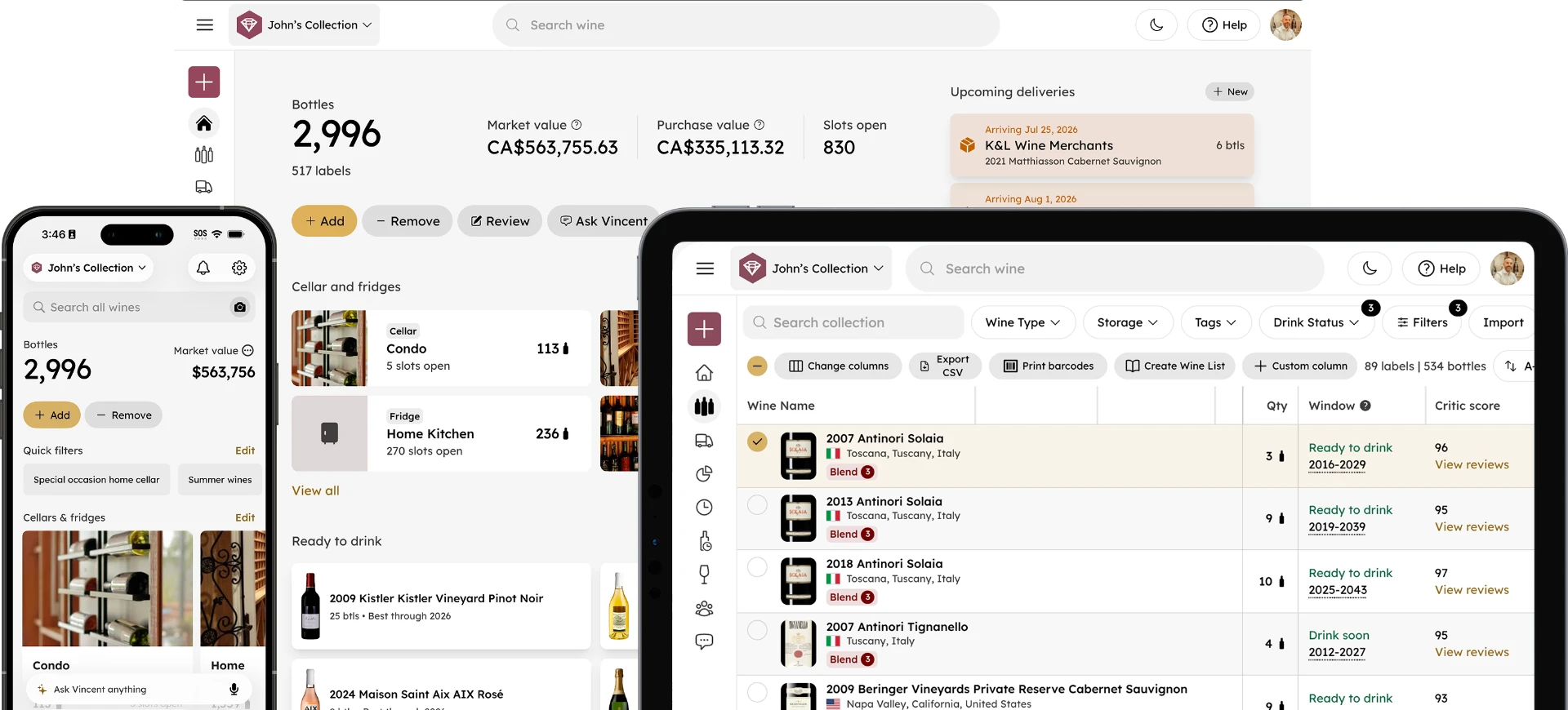
How to Switch From CellarTracker to InVintory
Madeleine Cruickshank
June 8, 2026 · 4 min read

Switching wine apps sounds like a hassle. In practice, moving your collection from CellarTracker to InVintory takes a few minutes and requires no technical knowledge. InVintory supports direct import from CellarTracker, which means your entire inventory (including bottles, vintages, locations, notes, and more) transfers over without manual re-entry.
This guide walks you through the process step by step.
Before You Switch: What Transfers From CellarTracker to InVintory
What data comes over from CellarTracker to InVintory?
InVintory's direct import from CellarTracker lets you choose exactly what to bring across. You can import any combination of the following:
- My Collection: Everything currently in your cellars
- Pending delivery: Any bottles awaiting delivery in your collection
- Wishlist: Wines on your wishlist, including bin and location data
- Community reviews: Any wine reviews you've personally written on CellarTracker
- History: Any bottles you've previously consumed
Your data remains in your CellarTracker account after the import. Nothing is deleted or removed from CellarTracker when you switch.
How to Import Your CellarTracker Collection Into InVintory
How do I import from CellarTracker into InVintory?
InVintory connects directly to CellarTracker; no CSV export required. Here's how:
On iPhone and iPad:
- Open InVintory and go to your Profile tab > Settings > Tap on your Collection > Scroll down to ‘Import data’
- Tap CellarTracker as the source
- Choose which data to import: Inventory, Community Reviews, Deliveries, Wishlist, and History
- Enter your CellarTracker username and password
- Confirm the import
On Web:
- Log into InVintory at app.invintory.com
- Go to Collection > Import > Import from CellarTracker
- Enter your CellarTracker username and password
- Select your preferred Import options > Continue
InVintory matches your bottles against its sommelier-curated database of over two million wines automatically. For bottles that don't match automatically, you'll have the option to confirm matches manually before the import is finalized.
After the Import: Getting Set Up in InVintory
What should I do after importing my collection?
Once your bottles are in InVintory, a few setup steps will get you the full experience quickly.
Set up your cellar and/or fridge storage layouts. InVintory's VinLocate technology maps your physical storage so you can find any bottle instantly. If you stored wine in bins or racks in CellarTracker, your location data will have come across; now you can build a visual layout that matches your actual cellar. For a full guide to mapping your storage, this post on setting up VinLocate covers the process in detail.
Set up your fridge templates. If you store wine in a dedicated fridge from EuroCave, LeCavist, Wine Enthusiast, or another major brand, InVintory's fridge templates let you map it in minutes. This guide to setting up your fridge covers the full process.
Try Vincent. InVintory's AI sommelier now has visibility into your full collection. Ask him what to open tonight, what pairs with what you're cooking, or which bottles are approaching their drinking window. The more you use him, the more personal his recommendations become.
Check your Ready to Drink list. InVintory automatically calculates drinking windows for every bottle in your collection. The Ready to Drink feature on your home screen shows every bottle currently in its peak window; a good first place to look after you've imported a large collection.
Why Collectors Switch From CellarTracker to InVintory
What does InVintory offer that CellarTracker doesn't?
The two apps serve different collecting philosophies. CellarTracker's strength is its community, with over 14 million reviews and a comprehensive community-powered wine database. InVintory is built around your collection specifically: your physical cellar and fridge layout, your taste preferences, and your AI sommelier who learns from every conversation.
The features that collectors most frequently cite when making the switch are VinLocate's visual cellar mapping, Vincent's collection-aware AI recommendations, and InVintory's modern mobile-first design. For a full comparison of both apps, this post on InVintory vs CellarTracker and our dedicated comparison page cover the differences in detail.
Import Your Collection Into InVintory →
Frequently Asked Questions
Can I import from CellarTracker into InVintory for free?
Yes. InVintory supports direct import from CellarTracker on the Free plan. You can bring your entire collection across without a paid subscription, then upgrade to Premium when you're ready to access VinLocate, Vincent, Collection Analytics, and other Premium features.
Will I lose my CellarTracker tasting notes when I switch?
No. You can import your personal CellarTracker reviews and consumed bottle history as part of the import, and your original data also stays in your CellarTracker account. Community tasting notes written by other CellarTracker members do not transfer, as those belong to CellarTracker's platform.
Can I use both InVintory and CellarTracker at the same time?
Yes. Some collectors use both apps simultaneously; CellarTracker for community review access and InVintory for physical cellar management and AI recommendations. Bear in mind that importing copies your collection across once rather than keeping the two connected, so bottles you add later need to be entered in both apps or brought over with another import.
How long does the CellarTracker import take?
For most collections the import takes a few minutes. Very large collections (500 or more bottles) may take slightly longer as InVintory matches each bottle against its database. You'll be notified when the import is complete.
Does InVintory support import from other apps besides CellarTracker?
Yes. InVintory supports direct import from CellarTracker, Vivino, and spreadsheets. For more on the import options available, this post on importing a large collection into InVintory covers the full process.
Your collection is already built. Moving it to InVintory takes minutes. Everything else (your personal AI sommelier, advanced Collection Analytics, and more) is ready the moment the import is done.