How to Track Wine Deliveries in InVintory: A Complete Guide
Madeleine Cruickshank
October 6, 2025 · 4 min read
A wine collection is always moving. En primeur orders placed years in advance, wine club shipments arriving every quarter, and merchant purchases that ship weeks after you order all mean bottles are constantly in transit. Knowing what's on its way matters as much as knowing what's already in your cellar.
InVintory's Deliveries feature gives you a dedicated place to log every incoming order, track its expected arrival, and move bottles directly into your collection the moment they land, with all purchase data already attached.
This guide covers how to use the Deliveries feature fully, from logging an order to receiving bottles and keeping your records clean over time.
What Is the InVintory Deliveries Feature?
What does the Deliveries feature do?
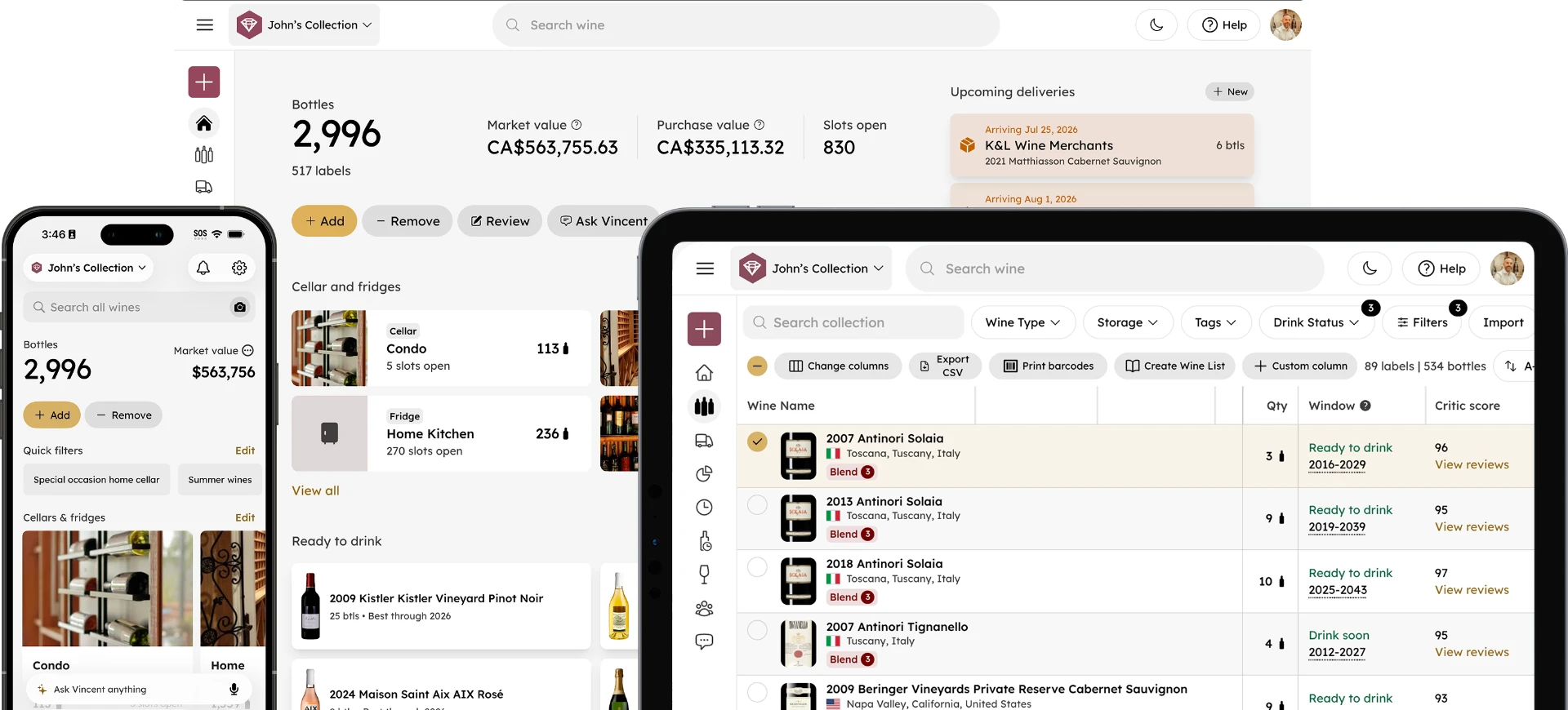
The Deliveries feature is a tracking layer for wine you've ordered but haven't yet received. Create deliveries to track incoming wine shipments. Bottles are marked as in transit until the delivery arrives, and pending deliveries appear on your home screen in the Deliveries section.
Each delivery holds the key details of an order: the merchant, the wines included, quantities, purchase prices, and the expected arrival date. When your shipment arrives, you receive all the bottles into your collection in a single tap, with purchase data already filled in.
How to Create a Delivery in InVintory
How do I log an incoming wine shipment?
The best time to create a Delivery in InVintory is the moment you place an order, before the details are anywhere else and so that you don't forget what's coming. Attach invoices by taking a photo of your receipt so you always have a record of what you paid. Set delivery dates so the home screen shows upcoming deliveries with their expected dates.
On iPhone and iPad:
- Tap the menu button on the home screen to open the Quick Action menu
- Tap Create delivery
- Enter the merchant name, purchase date, and expected delivery date
- Enter details like Destination cellar or fridge, tracking number, and any delivery notes you have
- Tap Next — you'll then be prompted to add the wines included in the order
- Search for each wine and add quantities
- Save the delivery
On Web:
- Open your InVintory dashboard
- Navigate to the Deliveries section
- Click New Delivery
- Enter the merchant, expected date, and purchase details
- Add the wines in the order and save
Once saved, the delivery appears on your home screen under the Deliveries section, showing the merchant name, expected arrival date, and bottle count.
How to Manage Pending Deliveries
What can I do with a delivery after I've created it?
Once a delivery is created, you can continue to manage it as the order develops.
Add bottles to an existing delivery
If additional wines are added to an order after you've already created the delivery, select the delivery from your home screen and select Add to add more wines to the pending shipment.
Edit the expected delivery date
If a shipment is delayed, update the expected date so your home screen reflects the accurate timeline.
Delete a delivery
If an order is cancelled or you need to remove a delivery, tap the three-dot menu and select Delete Delivery.
View all pending deliveries
Tap View all in the Deliveries section of your home screen to see a summary of everything currently in transit, including total bottle counts and expected dates across all pending orders.
How to Receive a Delivery When Bottles Arrive
What do I do in InVintory when my wine shipment arrives?
When a delivery arrives, open it in InVintory and tap Mark Delivered. All the bottles move from pending status into your active collection automatically, with purchase prices and dates already attached. No re-entry required.
If only part of a shipment arrives (which happens with mixed cases, split orders, or phased en primeur releases), you can mark individual bottles or partial quantities as delivered. The remaining bottles stay in pending status until the rest of the order arrives.
Once bottles are received into your collection they are immediately available for location assignment in VinLocate, visible in Collection Analytics, and accessible to Vincent for recommendations. If any of the newly arrived bottles are approaching their drinking window, they'll surface in your Ready to Drink list on your home screen automatically.
Why Delivery Tracking Matters for Serious Collectors
What types of wine orders benefit most from delivery tracking?
Any order where there's a meaningful gap between purchase and delivery benefits from tracking. Three scenarios come up most often for serious collectors.
En primeur orders
These are purchased before the wine is bottled, sometimes two or three years before delivery. Without a tracking system, it's easy to lose sight of what you've committed to, what you've paid, and when to expect it. InVintory keeps every en primeur order visible on your home screen from the day you place it to the day it arrives.
Wine club shipments
Regular club shipments vary in contents and arrive on a schedule that's easy to lose track of across a busy year. Logging expected shipments in InVintory means your home screen always shows what's incoming alongside what you already own.
Allocated wines and futures
Wines purchased through allocation lists or futures programs often ship months after purchase. Logging them immediately keeps those bottles in your mental and digital inventory from day one.
For a broader look at how InVintory tracks incoming shipments alongside the rest of your collection, this post on tracking wine deliveries and incoming shipments covers the full picture.
Using Deliveries Alongside the Rest of InVintory
How does delivery tracking connect to other InVintory features?
Delivery tracking is most valuable when it connects to your full collection data, and that's exactly how InVintory is built.
When you receive a delivery, bottles move directly into your active collection and update your Collection Analytics automatically. Your total bottle count, collection value, and spend data all reflect the new arrivals immediately. If you've mapped your cellar with VinLocate, you can assign precise locations to arriving bottles right away. And if bottles are approaching their drinking window, they'll appear in your Ready to Drink list as soon as they're in your collection.
Deliveries also support insurance and valuation record-keeping. Because purchase prices and merchant details are attached to every delivery, your collection records include provenance data for every bottle from the moment it's ordered. For more on how InVintory supports audit-ready collection exports, this post on insurance for collectors covers how to use InVintory's export tools for insurance documentation.
Track Your Deliveries in InVintory →
Frequently Asked Questions
How do I track wine deliveries in InVintory?
Create a delivery from the Quick Action menu on the home screen. Enter the merchant, expected delivery date, and the wines in the order. The delivery appears on your home screen in the Deliveries section and stays there until you receive the bottles into your collection.
Can I track en primeur orders in InVintory?
Yes. InVintory's Deliveries feature is well-suited to en primeur tracking. Log the order at purchase, set the expected delivery date as far in advance as needed, and receive bottles into your collection when they arrive. Purchase price and order details carry through automatically.
What happens when my wine delivery arrives?
Open the delivery in InVintory and tap Mark Delivered. All bottles move into your active collection with purchase data already attached. If only part of the order arrives, you can receive partial quantities and leave the rest in pending status.
Can I attach invoices to a delivery in InVintory?
Yes. When creating or managing a delivery, you can attach a photo of your invoice or receipt. This keeps your purchase records centralized and accessible for insurance or valuation purposes.
Is delivery tracking available on all platforms?
Yes. InVintory's Deliveries feature is available on iPhone, iPad, and the InVintory web app.
Can I add bottles to a delivery after I've created it?
Yes. Tap the three-dot menu on any pending delivery and select Add to add additional wines to an existing order.
Every bottle you've ordered is part of your collection, even before it arrives. InVintory's Deliveries feature keeps it that way from the moment you place the order to the moment you pull the cork.